
Genius Scan - PDF Scanner
The Grizzly LabsBusiness
4.925.03K Reviews
- Version
- 7.41.0
- Installs
- 10.00M
- Age Rating
- Everyone
Screenshots
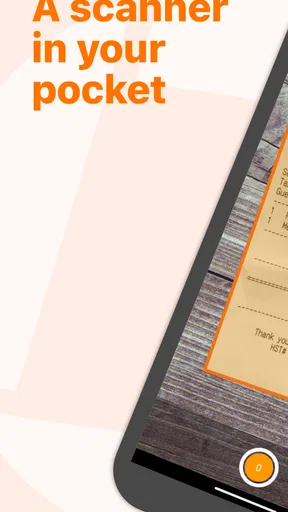
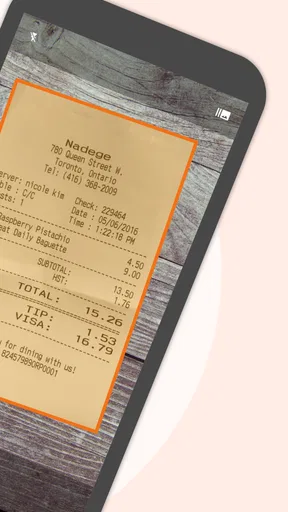
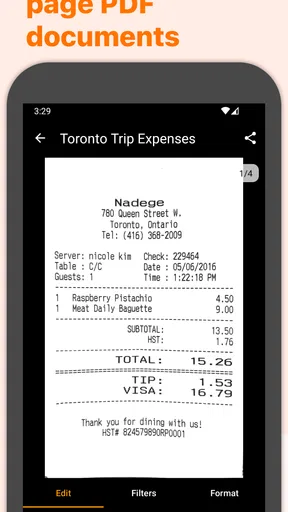
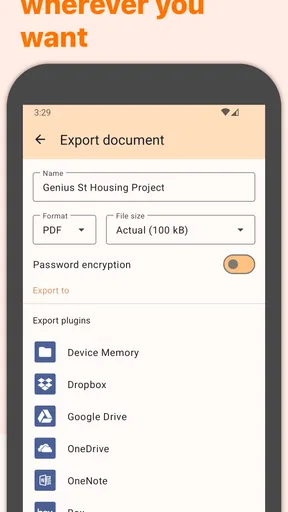

Our Review of Genius Scan - PDF Scanner
 Analysis by Appyee
Picture this: you're in a meeting, and someone hands you a crucial document that you just can't afford to lose. Or maybe you're a student who needs to digitize pages from a textbook without lugging it around. Enter Genius Scan - PDF Scanner, your trusty sidekick in the battle against paper clutter.
Readable scans, with a little care from you
The first thing you'll notice about Genius Scan is how easy it is to use. You open the app, point your camera at the document, and voilà, it does all the magic for you. The app automatically detects the edges of the document and enhances the readability. It’s almost like having a personal assistant tidying up your papers.
I was particularly impressed by how well it handles different lighting conditions. Whether you're in a dimly lit room or under the harsh fluorescents of an office, the app adjusts to give you a clear, readable scan.
That convenience still depends on the paper and the phone camera. A curled receipt, faint pencil, glossy surface, or deep shadow can make any camera scan harder to read. I get the best results by laying the page flat, keeping the phone steady, and checking the crop before saving. Auto-detection is a useful starting point, not a reason to skip reviewing the corners.
Navigation and page-by-page control
One of the standout features is the ability to batch scan multiple pages and merge them into a single PDF. This is a lifesaver for those of us who don't want to deal with multiple files. Plus, you can reorder pages with a simple drag and drop.
For a long form or a set of class notes, that page control makes a practical difference: I can capture the pages in the order that is easiest at the moment, then sort them into the order a reader expects. Before sharing, I would still open the finished document and check that no page is upside down, repeated, or missing. A neatly assembled PDF saves the recipient from having to guess what belongs where.
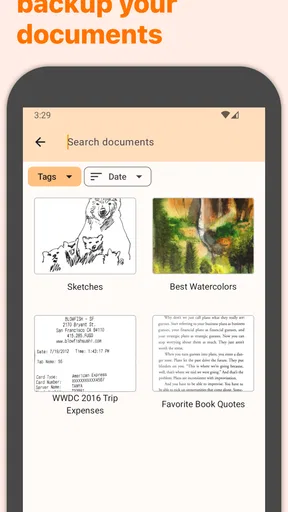
Let’s talk about organization. Genius Scan lets you tag and categorize your documents. I can't stress enough how much I appreciate this feature. It makes finding that one specific document a breeze, even if you have hundreds stored in the app.
My useful habit is to choose consistent labels as I scan—for example, separating receipts from contracts or course materials—rather than relying on memory later. That small step matters more as the collection grows. It also helps when I need to retrieve one page quickly while someone is waiting, instead of scrolling through a pile of similarly named files.
Turning Your Phone into a Portable Scanner
So, what's the deal with Genius Scan - PDF Scanner? Simply put, it transforms your smartphone into a portable scanner. I've played around with quite a few scanning apps, but there's something about this one that just clicks. It's like having a mini scanner in your pocket. Let's dive into how it works and why it's worth your time.
Useful workflows beyond a quick scan
A realistic use is handling paperwork on the move: after a meeting, I can capture a signed page, add it to the rest of the document, and send one file rather than several loose images. Students can use the same approach for handouts or selected textbook pages, while keeping the original paper available when they need to check diagrams or fine print. For receipts, scanning soon after a purchase is often easier than trying to make sense of a crumpled slip weeks later.
OCR (Optical Character Recognition) can recognize text within scans, which is handy when I need to extract wording rather than retype a short passage. I treat it as a convenience, not a guarantee: unusual fonts, low contrast, handwriting, and small print can all make recognized text less dependable. For a name, amount, or other detail that matters, I compare the extracted text with the page image before using it.
Security and sharing in everyday use
In today’s world, security is a big deal. Genius Scan understands that and offers options to protect your documents with passwords. You can also back up your scans to cloud services like Dropbox, Google Drive, or OneDrive, ensuring you never lose anything important.
Sharing documents is a piece of cake. Whether you need to email a scan or send it through messaging apps, Genius Scan has got you covered. It supports a variety of formats, so you can choose the one that suits your needs best.
I’d make a quick distinction between protecting a file and managing the whole document workflow. A password option can be useful when a file needs an extra barrier, but I would still take care about where I send sensitive paperwork and who can access a shared copy. Cloud backup is convenient if you want scans available beyond the phone; it also means deciding which documents you are comfortable placing in the account you use.
Motor and sensory considerations
Automatic edge detection can reduce the need to make a precise crop from scratch, and page reordering gives me a chance to correct the sequence after capture. Those are helpful details when careful camera positioning or repeated taps are tiring. Still, scanning is a physical task: holding a phone above a page, keeping it steady, and checking the result may be awkward for someone with limited hand movement or fatigue. A tabletop setup and short batches can make the process more manageable, though they do not remove that barrier.
For someone sensitive to glare or visual strain, I find it worth checking the scan at a comfortable size and in a suitable environment before relying on it. The app’s readability adjustments can help with ordinary paper, but they cannot restore information that the camera never captured clearly. If a document must be read by someone who needs larger text or a particular accessible format, I would verify the final file on the device and reading tools they actually use.
Where a phone scanner fits—and where it doesn’t
Compared with photographing every page and leaving a gallery full of loose images, a scanner app’s main advantage is the document-focused workflow: edge detection, a combined PDF, page ordering, and labels all help turn captures into something easier to handle. A dedicated flatbed scanner is still a better choice for frequent, high-volume office work or originals that need consistent handling. A phone is the convenient option for occasional pages, travel, and paperwork that needs to be sent promptly, not a full replacement for every scanning setup.
Genius Scan is a business app from The Grizzly Labs. It is free to download, with in-app purchases ranging from $0.99 to $39.99 per item. The app is rated for Everyone, has a 4.9 average from around 558,000 ratings, and has passed 10 million installs. Its current version is 7.35.1, and it runs on operating systems starting at version 8.0. Those figures suggest it is widely used, but my decision would still come down to whether its scanning and filing workflow suits the documents I handle.
The Little Things That Matter
While the main features are impressive, it's the little things that make Genius Scan a joy to use. For instance, the app supports OCR (Optical Character Recognition), which means it can recognize text within your scans. This is particularly handy when you need to extract text from a document.
There’s also a nifty feature that lets you print directly from the app using AirPrint. It's these thoughtful touches that show the developers really understand what users need.
That printing option is most useful when a digital scan is only one step in the job and I need a paper copy afterward. It also means the app can bridge a quick capture and a more familiar paper-based process. If your usual task is only to photograph a page for personal reference, those extras may be more than you need; a built-in camera or basic scanning tool may be enough. I would choose Genius Scan when organizing several pages, producing a shareable PDF, or finding older documents matters more than taking a one-off picture.
Who I’d recommend it to
I’d recommend it to students, freelancers, and anyone who regularly receives paper that needs to become a tidy PDF without being near a desktop scanner. It is especially useful when pages arrive at different times and need to be gathered into one document, or when searchable text and later retrieval would save repeated manual work. People who scan only occasionally can still benefit, but may not need to build a detailed archive.
I’d skip it as a primary solution if you need a high-throughput office scanner, routinely digitize delicate originals, or depend on a guaranteed accessible document workflow. In those cases, a dedicated scanner, help from another person, or a tool chosen specifically for the required reading and access needs may be a better fit. I also wouldn’t assume OCR makes every scan searchable or accurate without checking the result.
Final Thoughts
All in all, Genius Scan - PDF Scanner is a must-have app for anyone looking to declutter their life and keep their documents organized. It’s intuitive, packed with features, and genuinely makes life easier. Whether you're a student, a professional, or just someone who wants to keep their documents in order, this app is definitely worth checking out. Give it a try, and you might just find yourself wondering how you ever managed without it.
My inclusive verdict is positive, with a practical caveat: the app makes paper easier to capture, arrange, and pass along, but the camera-based process and the readability of the finished file still matter. I would test it on the kinds of pages I actually handle, then check the PDF on the device and with the people who need to use it. For everyday document capture, that balance of convenience and control is compelling; for high-volume or access-critical work, I’d compare it with equipment and workflows designed around those specific needs.
Verdict
Strengths of Genius Scan - PDF Scanner
- Quick scanning with high-quality results.
- User-friendly interface with intuitive design.
- Supports batch scanning for multiple pages.
- Easily export to cloud services like Dropbox.
- OCR feature for searchable PDFs.
Limitations of Genius Scan - PDF Scanner
- Free version has limited features.
- Occasional ads in the free version.
- No real-time collaboration features.
- Limited editing tools compared to competitors.
- Requires in-app purchases for premium features.
Other Releases by The Grizzly Labs
View All
Genius Fax
Business4.9
Similar Picks in This Category
View All
LinkedIn: Community & Network
LinkedIn3.8

Zoom Workplace
zoom.com4.1

Microsoft Teams
Microsoft Corporation4.6

Meta Business Suite
Meta Platforms, Inc.4.6

Webex Meetings
Cisco Systems, Inc.4.5

TeamViewer Remote Control
TeamViewer4.4
Frequently Asked Questions
What is Genius Scan and how does it work?
Genius Scan is a mobile app that transforms your device into a portable scanner. By using your camera, it captures documents and converts them into high-quality PDFs. The app automatically detects page edges, applies perspective correction, and enhances the scan quality, making it easy to save or share your documents.
Is Genius Scan available for both Android and iOS devices?
Yes, Genius Scan is available for both Android and iOS platforms. You can download it from the Google Play Store for Android devices and the App Store for iOS devices. The app is designed to provide a seamless scanning experience across both operating systems.
What types of documents can I scan with Genius Scan?
With Genius Scan, you can scan a wide variety of documents, including receipts, notes, contracts, and more. The app's smart algorithms ensure that scans are clear and legible, regardless of the type of document. It’s an ideal tool for digitizing important papers and organizing them efficiently.
Does Genius Scan offer any security features for my scanned documents?
Yes, Genius Scan offers several security features to protect your scanned documents. You can enable password protection for PDFs, ensuring that sensitive information remains secure. Additionally, the app supports cloud backup options, allowing you to store your scans safely in the cloud with encryption.
Are there any costs associated with using Genius Scan?
Genius Scan offers a free version that includes basic scanning features. However, there is also a paid version, Genius Scan+, which provides additional functionalities such as cloud storage integration, advanced editing tools, and enhanced security features. Users can choose the version that best fits their needs.
